
Overview
Menu Categories are used to organize menu items within a menu. Categories control how items are grouped and displayed for Customers in online ordering.
Categories live inside a menu and are required before any menu items can be added.
Menu hierarchy reminder:
Create a Menu
Add Categories to the menu
Add Menu Items to each category
Each menu can have multiple categories, and each category can contain unlimited menu items.
⚠️ Working in Multiple Browser Tabs
When making menu changes, we recommend working in a single CaterZen tab.
CaterZen can be opened in multiple browser tabs, but making menu changes in more than one tab at the same time can cause changes not to save correctly.
For best results:
Complete your menu changes in one tab
Save your changes and clear your menu cache before navigating elsewhere
Refresh your browser if you switch tasks
Accessing Menu Categories
Go to Admin → Menu
Select Menu Manager
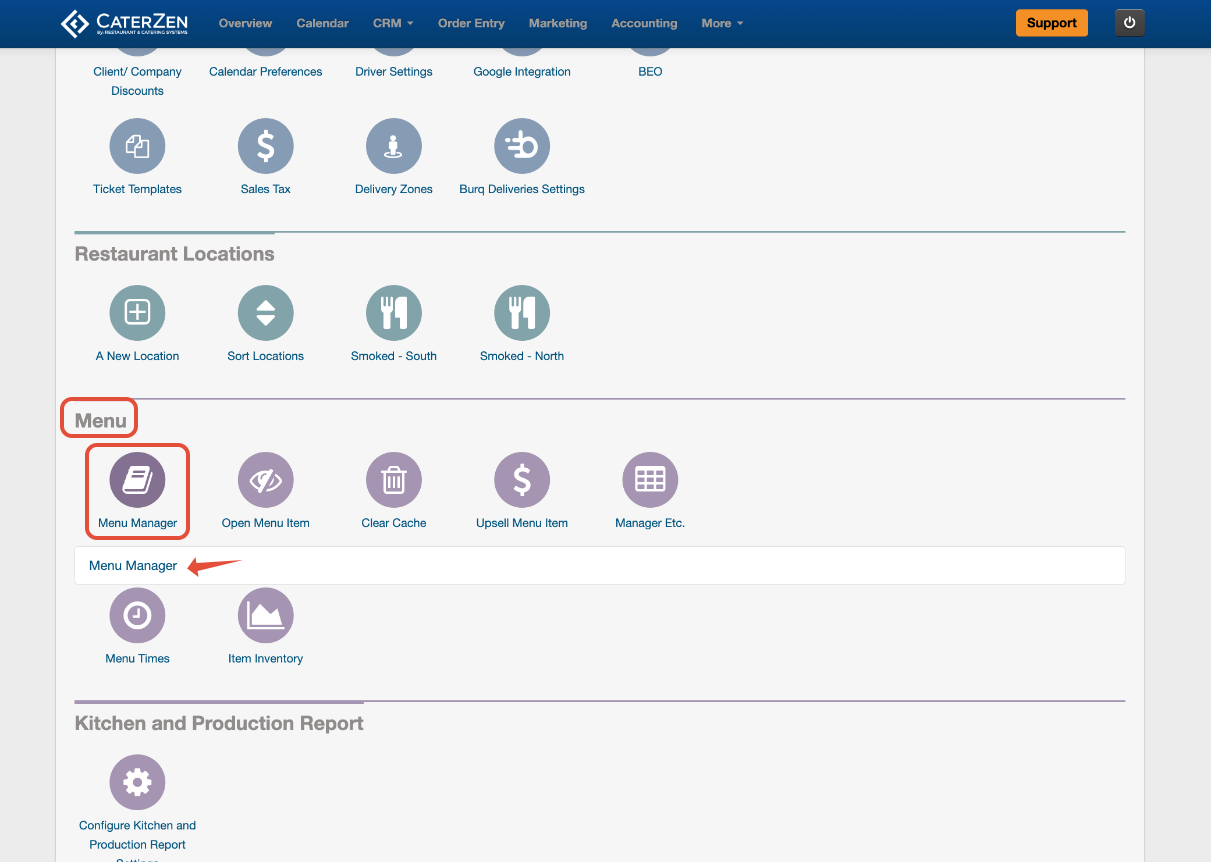
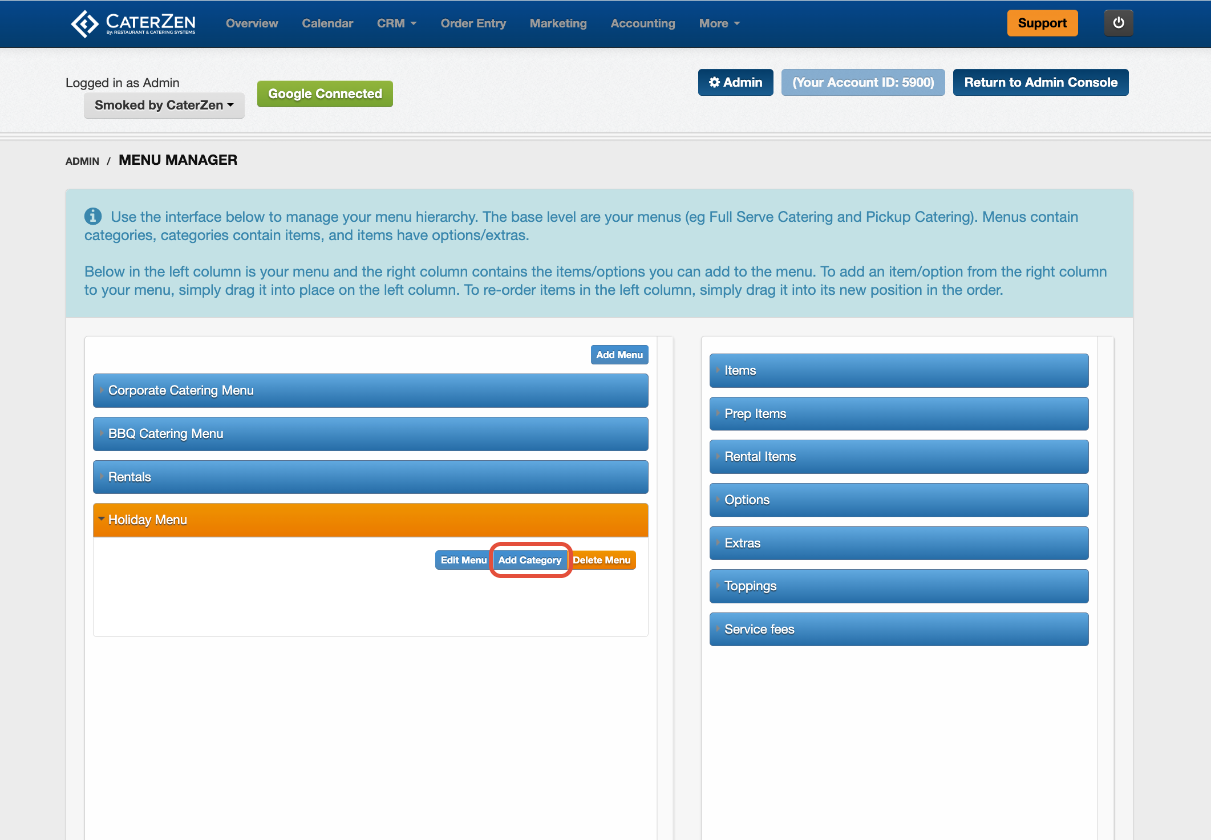
Choose the menu you want to work with
Click Add Category
Visual cue:
When you select a menu, category, or menu item on the left, it will highlight in orange. This indicates the active item you are currently editing or assigning to.
Creating a Menu Category
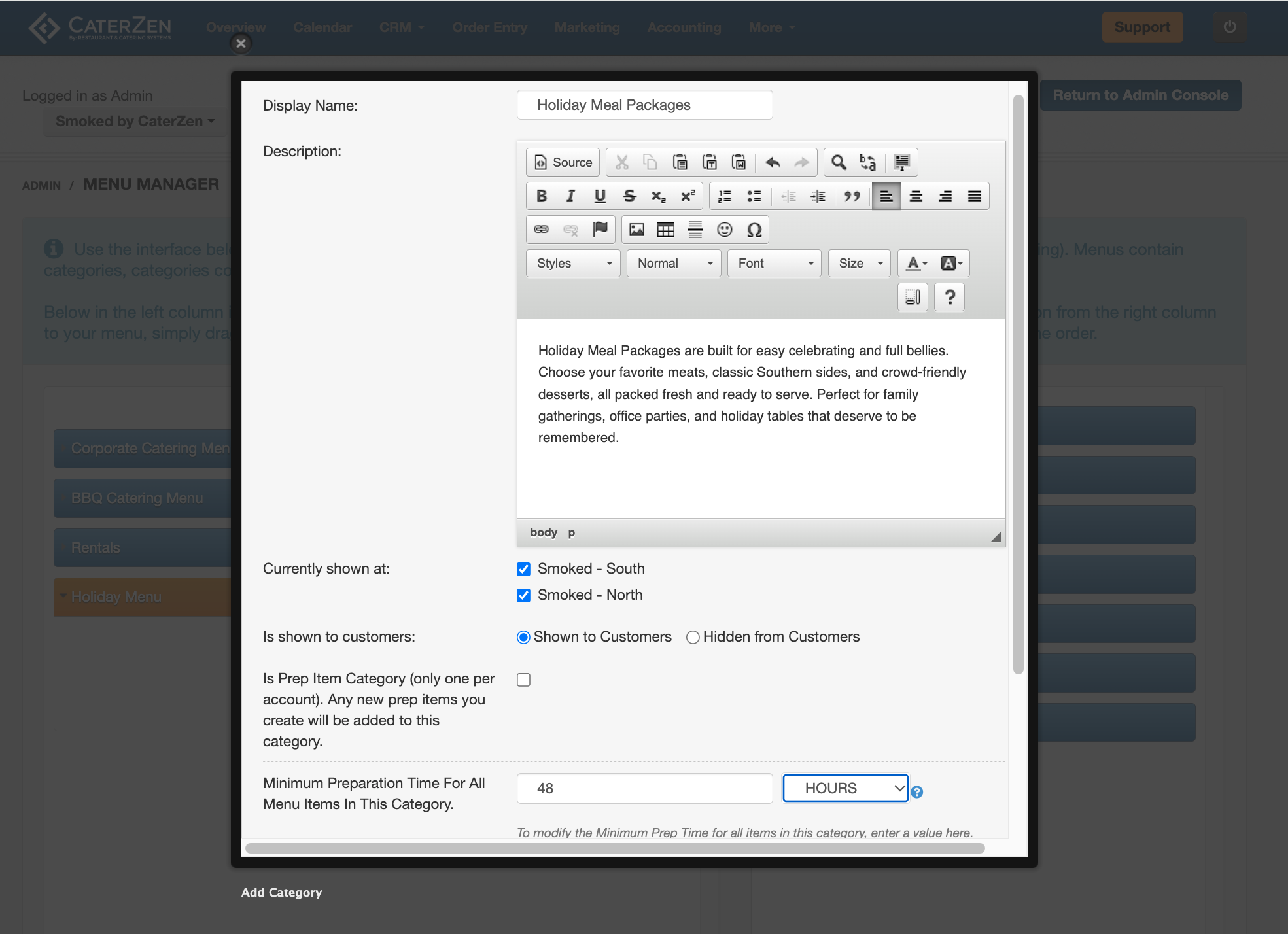
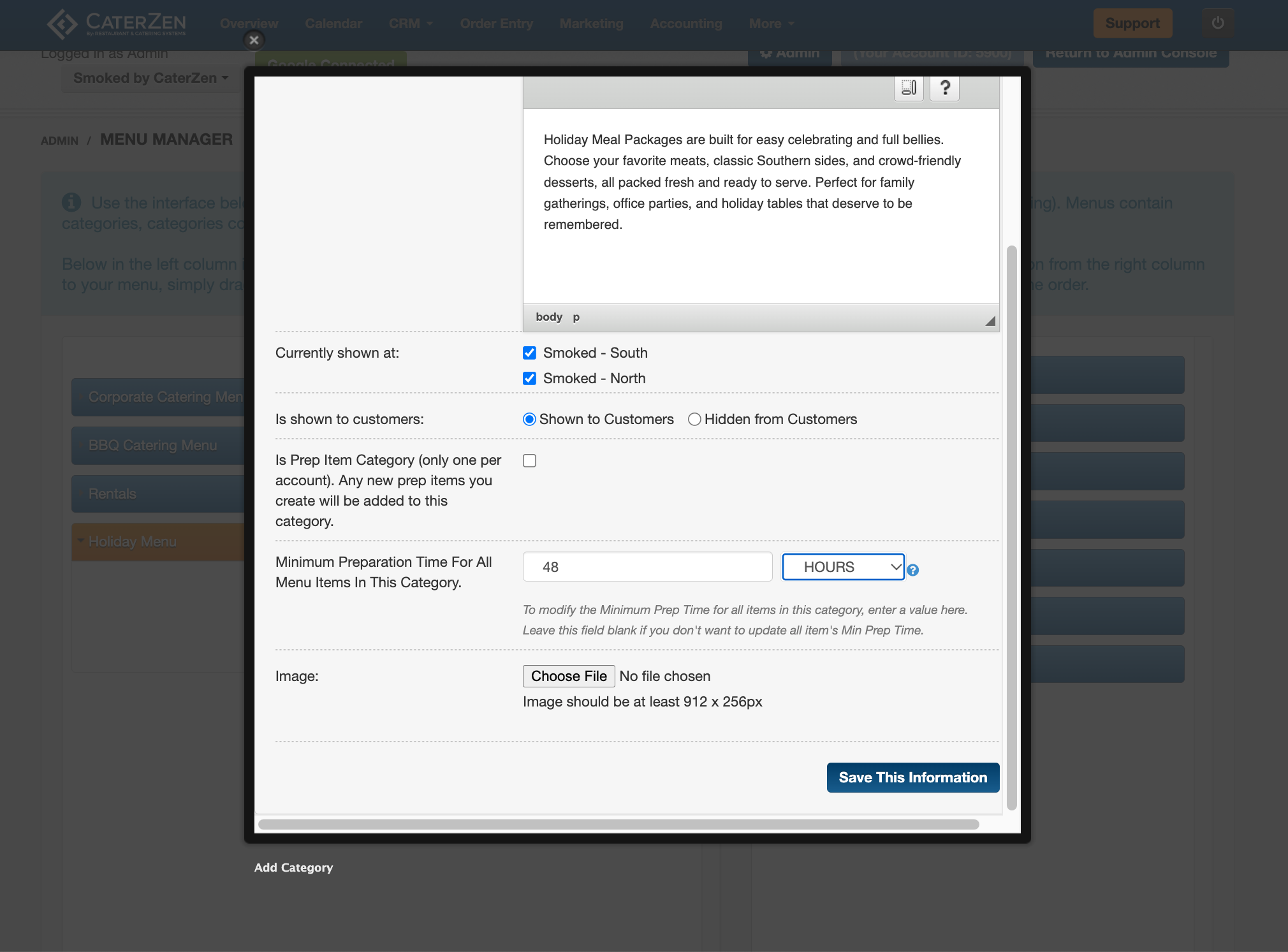
When adding a new category, complete the following fields:
- Category Display Name: This is the name that will display to Customers and employees. Use clear, descriptive names such as Appetizers, Sandwiches, Sides, or Desserts.
- Description or HTML Editor: Add details or a short description for the category here. You can type your own text or paste in HTML code.
- Currently Shown At: Select the location(s) where this category should be available.
If a location is not selected, items in this category will not appear for that location. - Shown to Customers: Controls whether the category is visible in Online Ordering:
- Shown: Customers will see this category
- Hidden: Category is internal-only for logged-in employees
- Prep Item Category: Leave unchecked
- Minimum Prep Time (optional): Sets a minimum preparation time for items in this category.
This can be used to prevent short-notice orders for items that require additional lead time. Choose from minutes, hours or days in the dropdown. - Image: Click Choose File to upload an image that will display as the menu banner or button.
- Image requirements: Minimum size: 912 px x 256 px. Use a clean, wide image that crops well on different screens
- Click Save This Information
Editing or Reordering Categories
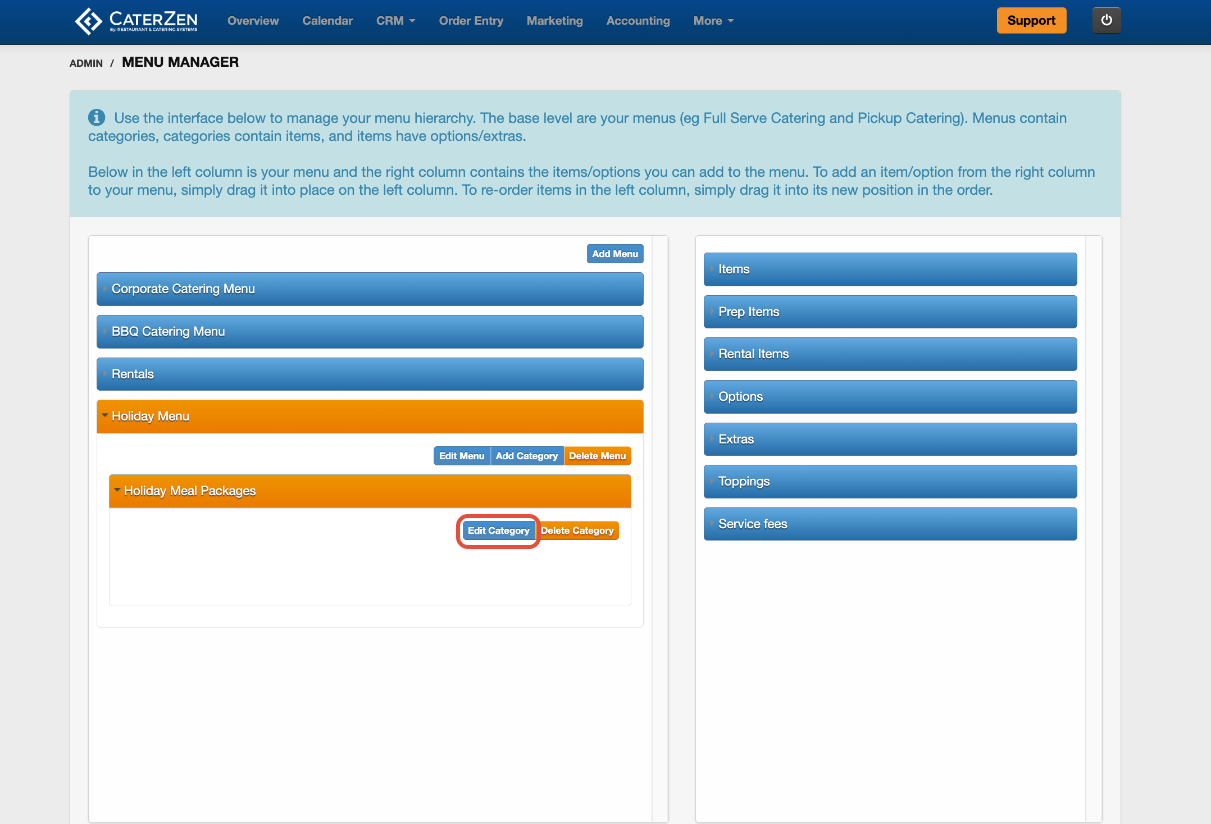
Categories can be edited at any time by selecting the category and clicking Edit Category
Categories can be reordered using drag-and-drop
The order of categories controls how they appear in Online Ordering
Clearing Cache
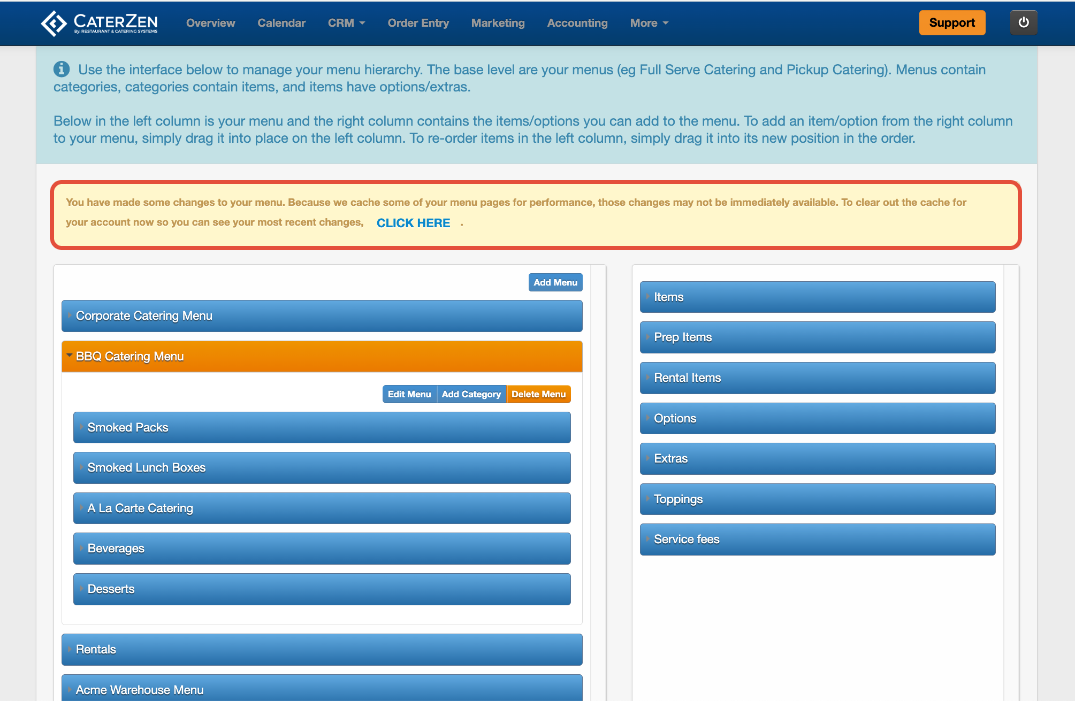
After saving menu changes, you may see a yellow notice at the top of the Menu Manager screen indicating that recent updates may not be immediately visible. This happens because some menu data is temporarily cached for performance. Click CLICK HERE to clear menu cache.
You may need to manual clear the menu cache if you:
Added or updated a menu, category, or menu item
Changed visibility, order types, or permissions
Updated options, extras, or toppings
Adjusted pricing, prep times, or availability
Important Notes
Categories must exist before menu items can be added
A menu can have multiple categories
Category settings apply to all items within the category
Next Steps
Once your categories are created:
Add items to each category
→ Menu Manager: Add Menu ItemsConfigure item behavior if needed:
Support
If a category isn’t appearing or you’re unsure which fields to use, CaterZen Support Center can help review your setup.
Not a CaterZen customer yet? Discover how our catering software can streamline your business — click here to learn more!