
Overview
Rental items appear on a BEO only if they are created as rental items in Menu Manager and added to an order. Rentals are treated like menu items, but are classified separately so they display correctly on BEOs.
If you have a limited quantity of rental items available per day, inventory levels should also be set to prevent overselling.
When Rental Setup Is Required
You only need to complete this setup if:
You include rentals such as tables, linens, chafers, tents, or equipment
You want rental details to appear on BEOs
You want rentals listed separately from food and beverage items
If rentals are not added to the order, they will not appear on the BEO.
Step 1: Access Rental Items
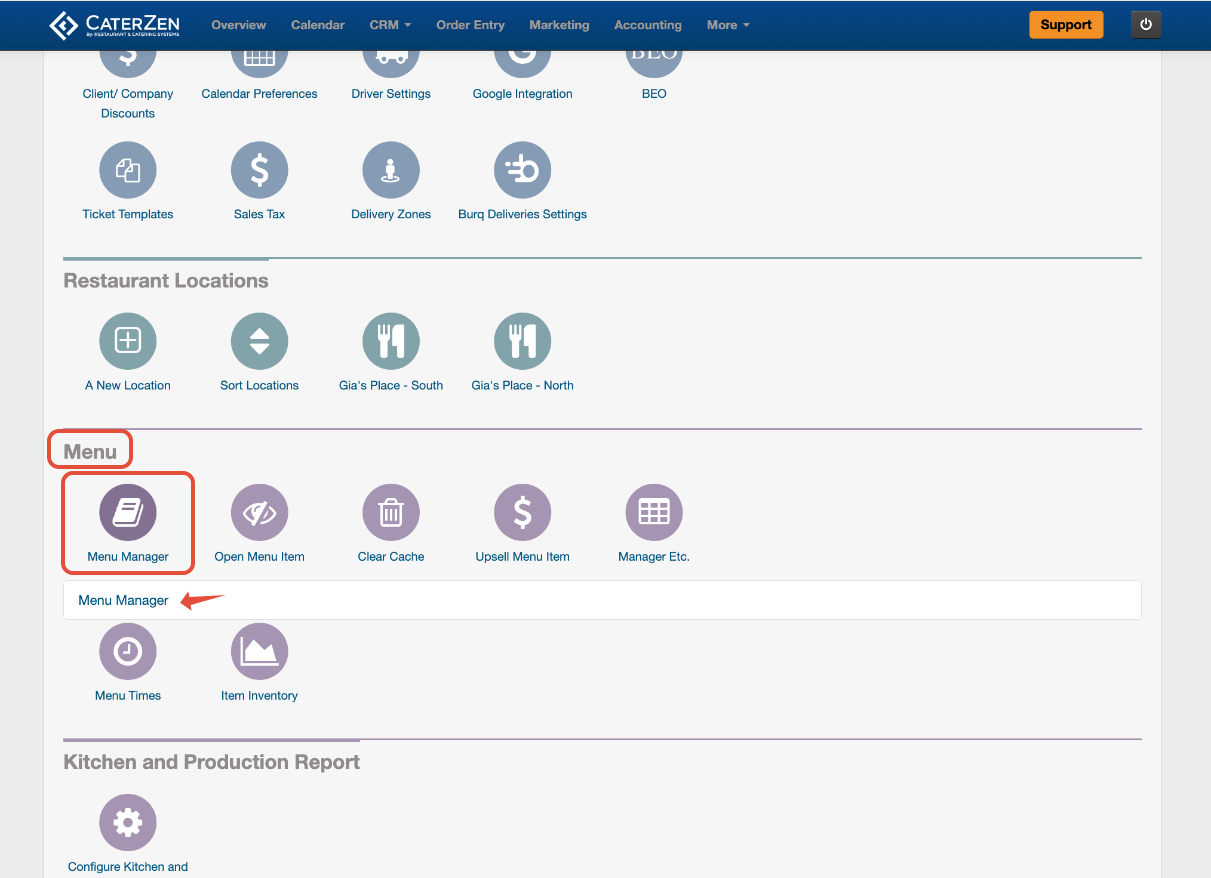
Go to Admin
Click Menu Manager
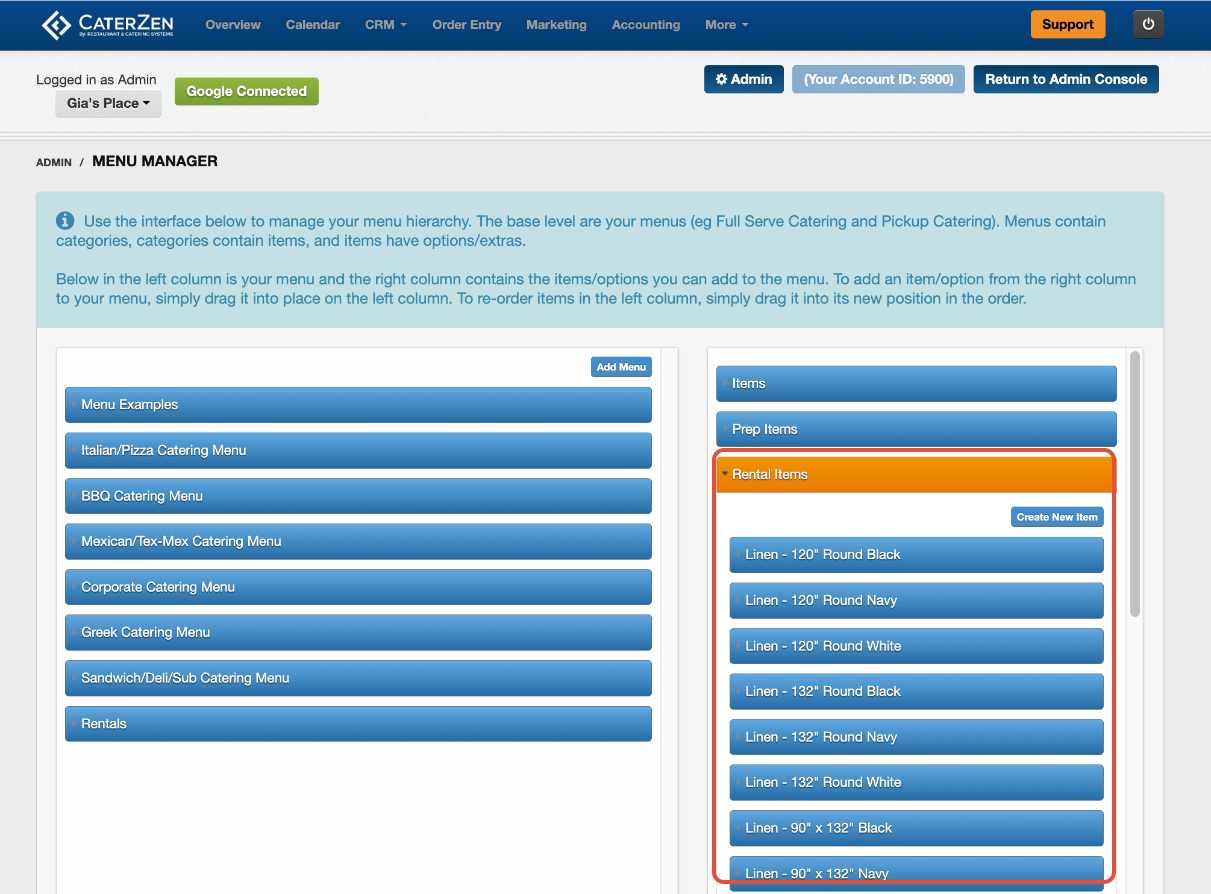
Select the Rental Items tab on the right side of the page
You will see a list of existing rental items.
Step 2: Create a New Rental Item
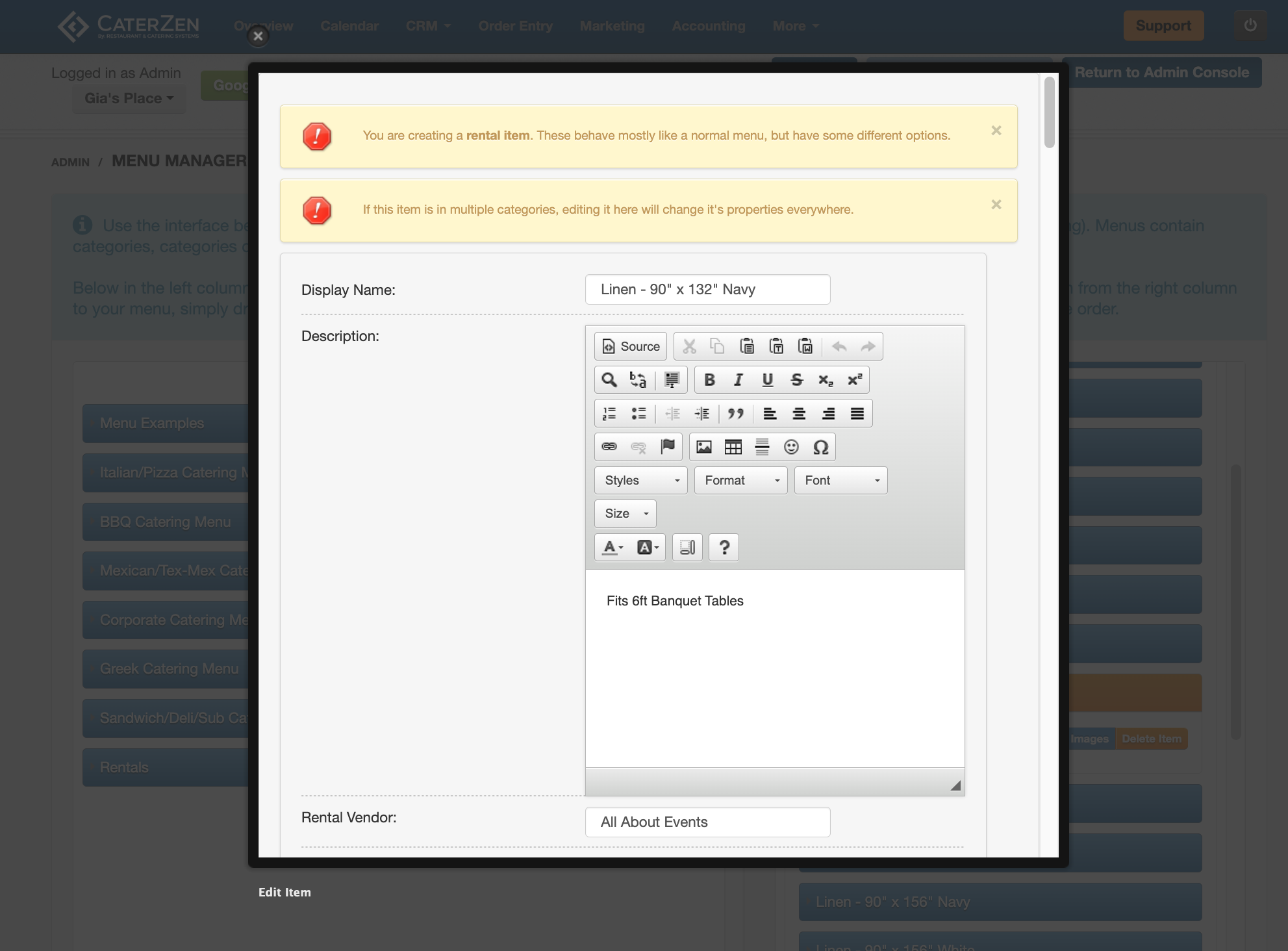
Click Create New Item
Enter the rental details:
Display Name: Name of the rental item
Description: Optional description for staff reference
Rental Vendor:
Select an existing vendor
Or create a vendor such as House Owned for in-house rentals
Minimum Preparation Time: Sets the minimum advance notice required for this item.
Minimum Number Required to Order: Sets a minimum quantity that must be ordered for this item.
Minimum Number Required per Category: Requires a minimum number of items ordered within the category. Example: Require at least 10 total dessert items.
Allow Partial Quantities: Allows Customers or employees to order fractional quantities Example: 1.5 lbs, 2.25 trays.
Item Should Be (Customer): Controls visibility to Customers. Useful for internal-only or temporary items.
Show to Employees
Hidden from Employees
Item Should Be (Employee): Controls visibility to logged-in employees.
Show to Employees
Hidden from Employees
Sales Category: Determines tax behavior and reporting category for the item.
Show “This Item Is For” Field: Enables Menu Buddies for this item only.
Store Item Description With Order: Stores the item description directly on the order.
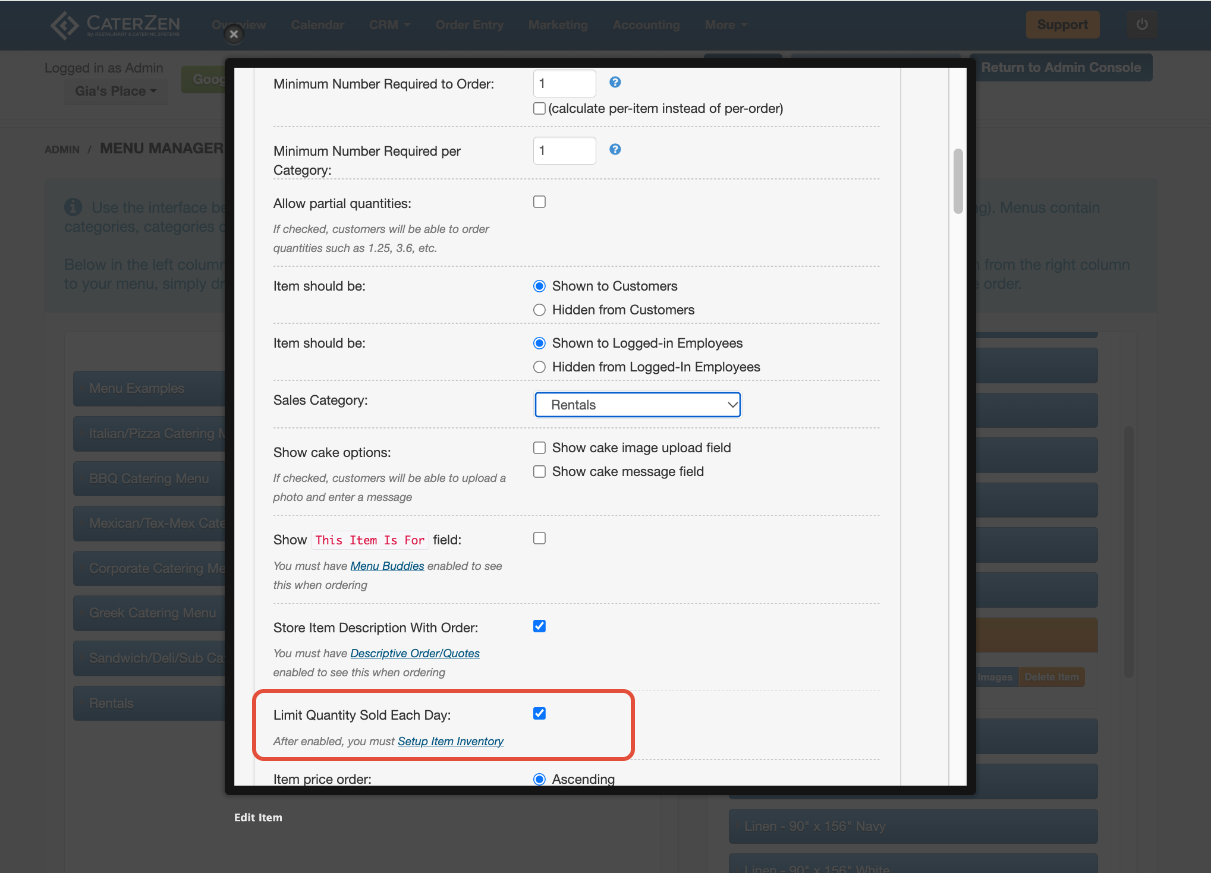
Inventory Levels for Rental Items (Recommended): If you have a limited number of a rental item available on a given day, inventory levels should be set to prevent overselling.
Inventory levels allow CaterZen to:
Limit how many times a rental item can be sold per day
Prevent double-booking equipment across multiple events
Automatically stop offering the rental once the daily limit is reached
Without inventory levels, rental items can be sold an unlimited number of times.
For step-by-step instructions on enabling and managing inventory limits,
see: Item Inventory Levels: Limit How Many Items Can Be Sold Per Day
Service Fee: Adds a service fee specific to this item.
Other Extra Fee: Adds an additional fee separate from the service fee.
Custom Delivery Fee: Adds a delivery fee that applies only when this rental item is ordered.
Step 3: Set Pricing
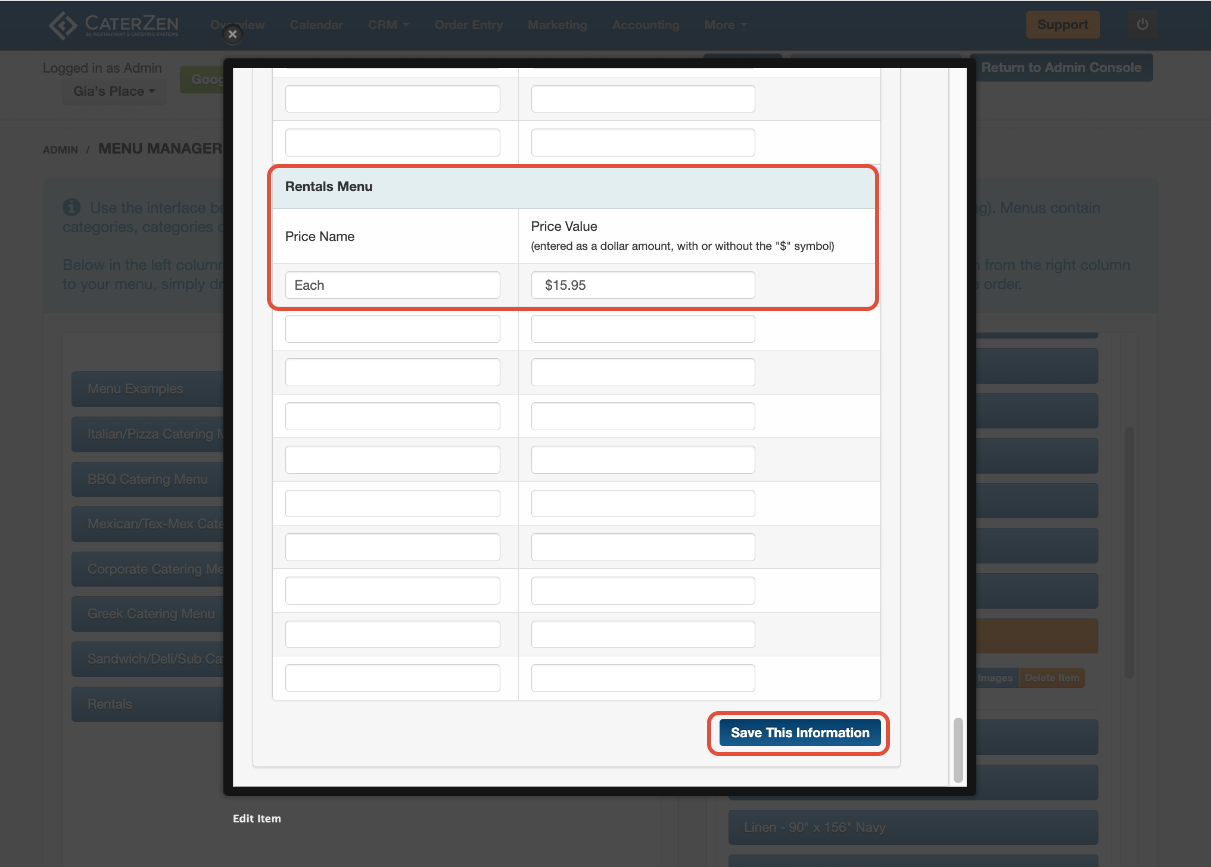
Scroll to the Pricing section
Add pricing under the menu where the rental should appear
Click Save This Information
The rental item is now available to add to menu(s).
Step 4: Menu Placement and Organizing Rental Items
For easier order entry, it’s strongly recommended to:
Create a dedicated Rental category in Menu Manager. This keeps rentals easy to find when adding them to an order.
Keep the Items tab on the right open
Select the menu and category on the left you wish to add the item to
Find the new rental item in the item list on the right.(alphabetical)
Drag and drop the item into the category on the left
The item is now available during order entry.
Adding Rentals to an Order
To display rentals on a BEO:
Add the rental item to the order during Order Entry
Apply a BEO template to the order
Only rentals added to the order will appear on the BEO.
How Rentals Appear on a BEO
Rentals display in the Rentals section of the BEO
Quantities and descriptions pull directly from the order
Rentals can be reviewed or adjusted per event if needed
Edits made on the BEO apply only to that order.
Common Issues and Fixes
Rental not appearing on the BEO
Confirm the item is classified as a rental and added to the order.
Rental not available during order entry
Check that pricing was added under the correct menu.
Vendor missing
Create or assign a rental vendor when editing the rental item.
Best Practices
Use consistent naming for rental items
Create a single category for rentals to keep menus clean and have sub categories for organization
Review rental setup seasonally or when vendors change
Keep descriptions clear for onsite staff
Related Articles
Support
If rentals aren’t showing on your BEO or you’re unsure how to organize them, our CaterZen Support Team can help review your setup and make recommendations.
Not a CaterZen customer yet? Discover how our catering software can streamline your business — click here to learn more!